Create a Label UPS: 7 Easy Steps for Beginners (2026)
Getting a package ready to ship can feel like a chore, but learning how to create a label UPS online is a simple process that saves you time and significant money compared to retail counter rates. To create a label UPS requires, you will enter sender and recipient addresses, provide package details like weight and dimensions, select a shipping service, and pay for it online. Whether you’re a small business owner or just sending a one off gift, you can generate a professional, trackable label right from your computer or phone.
This guide will walk you through the entire process, from choosing the right platform to sticking the final label on your box.
Two Main Ways to Create a UPS Shipping Label Online
Before you start entering addresses, your first decision is where you’ll create the label. You have two excellent options.
Using UPS.com Directly
The most direct method is to visit the UPS website. You can create a label UPS provides by either logging into a free account or checking out as a guest. This is a great choice for occasional shippers who need a label quickly without signing up for another service.
Using Third Party Shipping Software
For those who ship more frequently, especially ecommerce sellers, using third party shipping software to create a label UPS is a game changer. Platforms like ShipStation, Shippo, and ShippingEasy integrate with UPS and offer substantial discounts. These services often provide commercial rates that can save you a bundle. For instance, some platforms advertise savings of up to 77% on UPS Ground and up to 83% on international services.
These tools also unlock powerful features like printing 4 by 6 thermal labels, processing shipments in batches, and integrating with online marketplaces. If you’re looking for the deepest discounts, this is the path to explore. To easily see your options side by side, you can use a free rate comparison tool. Find the best price for your package with the Online Shipping Calculator and get pointed to the right software for your needs.
Your Step by Step Guide to Create a Label UPS
Once you’ve chosen your platform, the process to create a label UPS requires is fairly standard. Here are the steps you’ll follow.
Step 1: Account Setup or Guest Checkout
When using UPS.com, you’ll be asked to log in or continue as a guest.
- Guest Checkout is perfect for a single, one time shipment. It’s quick and gets the job done.
- Creating a free UPS.com account is better for repeat use. A login unlocks your shipping history, which makes reprinting a lost label a breeze. Guests do not have this option. An account also gives you more control over billing and pickup scheduling.
Step 2: Enter Sender and Recipient Information
This part is straightforward. You’ll need to provide the “Ship From” (your) address and the “Ship To” (recipient) address. If you’re sending a package abroad, skim our quick guide to international shipping first.
- Sender Info: Ensure your return address is complete and accurate. This is crucial for returns and customs. If you’re planning an exchange or easy returns, you can also create a prepaid return label. For international shipments, having a UPS payment account allows you to choose whether the shipper or receiver pays duties and taxes. Without one, it defaults to the receiver paying.
- Recipient Info: Double check the delivery address for accuracy to avoid correction fees. If you need a refresher on formatting, here’s how to address an envelope. It’s important to note that most standard UPS services cannot deliver to P.O. Boxes. You can also choose to ship to a nearby UPS Access Point, a secure location where your recipient can pick up the package at their convenience.
Step 3: Define Your Package Details
Next, you’ll tell UPS about your package. This includes its packaging type, weight, and dimensions, which are critical for calculating the correct price.
- Select Packaging Type: Indicate whether you’re using your own box or a UPS branded option like a Pak or Letter. You can also use your own packaging for UPS Simple Rate, a flat rate service, as long as your box is under one cubic foot. Be aware that using non standard packaging, like a cylindrical tube, can trigger an Additional Handling surcharge.
- Enter Weight and Dimensions: Weigh your packed box and measure its length, width, and height. UPS rounds any fraction of a pound up to the next whole pound. Your shipping cost is based on the billable weight, which is the greater of the actual weight versus the dimensional weight. Learn how carriers calculate shipping costs. As of August 18, 2025, UPS rounds every fractional inch up to the next whole inch when calculating dimensional weight, making accurate measurements more important than ever.
Step 4: Choose Your UPS Service and Add Ons
Now you select how fast you want your package to arrive. UPS offers a range of services to fit your budget and timeline.
- UPS Ground: This is the standard, day definite service that typically takes 1 to 5 business days. UPS states that 90% of their Ground packages are delivered in three days or less.
- Air Services: For faster delivery, you can choose from options like UPS 3 Day Select, UPS 2nd Day Air, or time definite UPS Next Day Air services.
- Optional Services: You can add value added services for more control and security. These include Signature Required, insurance (called Declared Value), and C.O.D. (Collect on Delivery).
Deciding between Ground and Air can be tough. Running a quick comparison at a site like Online Shipping Calculator can instantly show you the price difference for your specific shipment. If you’re also deciding on carrier, here’s a walkthrough on which is cheaper, UPS or USPS.
Step 5: Pay for and Generate Your Label
Once you’ve made your selections, you’ll proceed to payment. UPS.com accepts major credit cards and PayPal. Having a UPS payment account linked to your login provides more flexibility, particularly for managing billing for things like international duties. When you create a label UPS will automatically include any applicable fuel surcharges in the final price.
Step 6: Print Your UPS Shipping Label
After payment, it’s time to print. You have a couple of common format options.
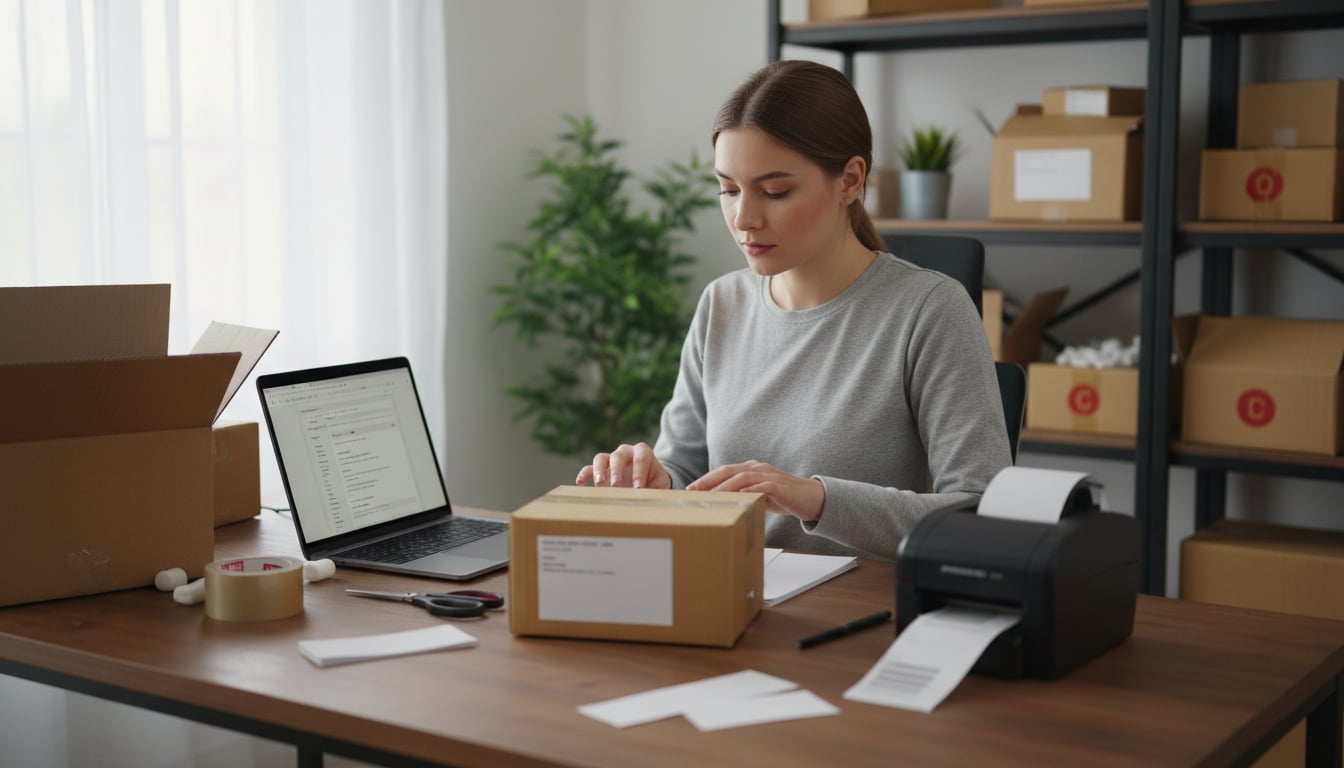
- Select Label Size and Printer: You can print a standard 8.5 by 11 inch PDF on any regular desktop printer, which you then fold and attach. Alternatively, if you have a thermal printer, you can select the 4 by 6 inch format for a convenient peel and stick label. Not sure which device to buy? See our guide to the best shipping label printers.
- Printing at Home vs In Store: If you don’t have a printer, don’t worry. The UPS mobile app can generate a QR code after you create your label. Simply take your package to a UPS Store and they can scan the code to print the label for you. A key tip for printing from UPS.com on a desktop is to ensure your browser’s pop up blocker is disabled, as the label often opens in a new window.
Step 7: Attach the Label to Your Package
Proper label placement is essential for automated scanners to read the barcodes and route your package correctly.
- Use a sturdy box and remove or cover any old labels and markings.
- Place the new label on the largest, flattest surface of the package.
- It’s best to use a clear plastic pouch. If you don’t have one, tape all four edges of the label down flat with clear packing tape. Avoid taping over the barcodes or addresses if possible.
- As a backup, it’s a smart idea to place a duplicate address label inside the box.
- For any package weighing over 70 pounds, you must apply a bright yellow UPS “HEAVY” sticker near the address label. For boxes approaching this range, compare options like LTL freight to reduce handling risks and costs.
Following these steps will help you successfully create a label UPS systems can read easily, ensuring a smooth journey for your shipment.
Frequently Asked Questions About How to Create a Label UPS
What is the cheapest way to create a UPS label?
Generally, the cheapest way to create a label UPS offers is by using third party shipping software. These platforms provide access to discounted commercial rates that are significantly lower than the retail rates you would pay at a physical UPS Store.
Can I create a UPS label on my phone?
Yes, you can. You can use the UPS mobile app or the UPS.com website on your phone’s browser to go through the entire process. The app will even give you a QR code so you can have the label printed for you at a UPS location.
What if I don’t have a printer to create a UPS label?
No printer is no problem. After you create a label UPS will provide a mobile QR code through its app or website. Take your sealed package to The UPS Store or a participating location, show them the code on your phone, and they will print and attach the label for you.
How long is a UPS shipping label valid for?
You can void an unused UPS label online within 90 days of creating it. After 90 days, you must contact UPS directly for a void request. After 180 days, a void will no longer be processed. Some third party platforms may have different timelines for automatic refunds on unused labels.
Can I edit a UPS label after I create it?
No, you cannot edit a shipping label once it has been generated and paid for. If you made a mistake on the address or package details, the correct procedure is to void the incorrect label and create a new one with the right information.